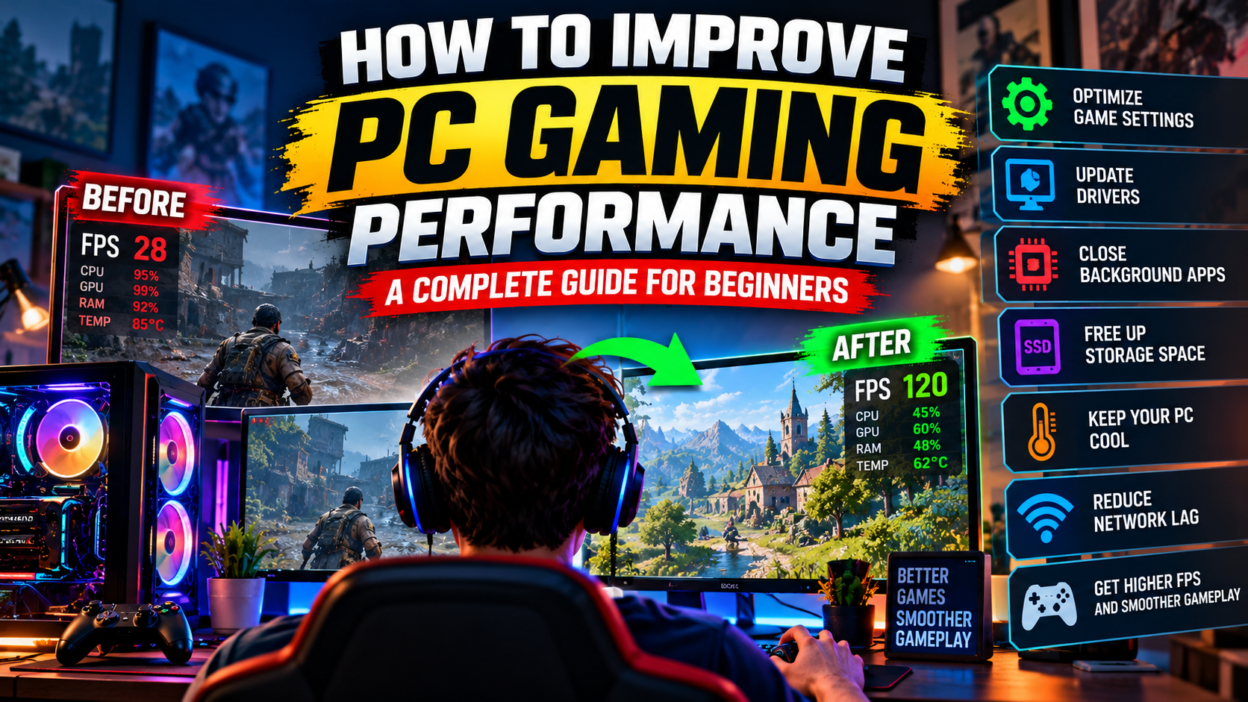
PC gaming can be an exciting experience, but it can become frustrating when a game runs slowly, freezes, or takes too long to load. You may notice sudden frame drops, stuttering, overheating, or delays during online matches. These problems can make even a good game difficult to enjoy.
The good news is that you do not always need to buy a new computer to improve gaming performance. Many problems can be reduced by adjusting game settings, updating software, managing background applications, and keeping your computer in good condition.
However, every computer is different. A gaming desktop with a powerful graphics card will perform differently from an older laptop with integrated graphics. The best solution depends on your hardware, the game you play, and the type of problem you experience.
In this guide, we will explain how to improve PC gaming performance in simple English. You will learn about FPS, graphics settings, Windows optimization, graphics drivers, storage, overheating, internet lag, and common mistakes to avoid. These tips are suitable for beginners who want to enjoy smoother gameplay without spending money unnecessarily.
1. Understand What Affects Gaming Performance
Before changing your computer settings, it helps to understand why games sometimes run poorly.
Several hardware and software components work together when you play a game. If one component becomes a limitation, the entire experience may suffer.
The Graphics Card
The graphics card, also called the GPU, handles much of the work required to display game graphics. It processes textures, lighting, shadows, effects, and other visual details.
Games with realistic environments and detailed graphics can require substantial graphics processing power. If your graphics card cannot handle the selected settings, the game may run at a low frame rate.
Reducing resolution, shadows, reflections, and other demanding settings can sometimes improve performance.
The Processor
The processor, commonly called the CPU, handles many calculations required by a game. These can include character behavior, physics, game logic, and other background tasks.
Some games depend heavily on the processor, particularly when many characters, objects, or activities appear at once.
If the processor is struggling, lowering graphics quality may not solve every performance problem. Closing unnecessary applications and checking processor usage can help you understand what is happening.
RAM and Memory Usage
RAM is the temporary memory that your computer uses while applications are running.
Games need enough available memory to manage their environments, characters, textures, and other information. If memory becomes limited, the computer may rely more heavily on storage, which can cause slowdowns.
Running many applications while gaming can increase memory usage. Closing unnecessary programs may help, especially on computers with limited RAM.
Storage
Storage affects how quickly games start, load levels, and access files. A solid-state drive, or SSD, generally loads data much faster than a traditional hard disk drive, or HDD.
An SSD can improve loading times and may reduce some streaming-related stutters. However, it will not automatically increase FPS in every game.
Understanding these components helps you choose the right solution instead of changing random settings.
2. Check Your Computer Specifications
One of the first steps toward better gaming performance is checking whether your computer meets the game’s system requirements.
Every game has different requirements. A lightweight puzzle game may run on an older computer, while a modern open-world game may need much more powerful hardware.
On Windows, you can start by opening Task Manager and selecting the Performance section. This displays information about your processor, memory, storage, and graphics hardware.
You can also open the Windows System Information application to see details about your computer.
Write down the following information:
- Processor model.
- Installed RAM.
- Graphics card model.
- Available storage space.
- Windows version.
- Monitor resolution and refresh rate.
Next, compare these specifications with the minimum and recommended requirements for the game you want to play.
Minimum requirements usually describe the basic hardware needed to run the game. Recommended requirements generally indicate a more comfortable experience, although actual results can vary.
If your computer is below the minimum requirements, software adjustments may help, but they cannot replace missing hardware capability.
Avoid purchasing upgrades before identifying the actual limitation. Sometimes a simple settings change can improve performance without any additional expense.
3. Understand FPS and Why It Matters
FPS stands for frames per second. It describes how many individual images your computer displays each second during gameplay.
A higher frame rate can make movement look smoother and controls feel more responsive. However, the ideal frame rate depends on the game, your monitor, and your personal preferences.
For example, a strategy game may remain enjoyable at a relatively modest frame rate. A competitive shooter or fast racing game may benefit more from a higher and more consistent frame rate.
Common frame rate targets include:
- 30 FPS for basic gameplay in suitable games.
- 60 FPS for a smooth experience in many games.
- 120 FPS or higher for players using compatible high-refresh-rate displays.
These are general targets, not strict requirements for every game.
Consistency also matters. A game that stays close to 60 FPS may feel better than one that jumps between 100 FPS and 35 FPS.
Some games provide a built-in FPS counter. You can also use supported monitoring features from your graphics software or game platform.
Observe performance in the areas where you experience problems. A game may run smoothly in an empty room but slow down during busy scenes.
Do not assume that a higher number is always necessary. Choose settings that provide a good balance between smooth gameplay, visual quality, and your computer’s capabilities.
4. Adjust Graphics Settings for Better Performance
Graphics settings are among the easiest ways to improve performance without upgrading your hardware.
Open the game’s settings menu and look for graphics, video, or display options. The exact names vary between games.
Start by changing one or two settings rather than lowering everything immediately. This helps you identify which options make the biggest difference.
Lower the Display Resolution
Resolution determines how many pixels are displayed on the screen.
A higher resolution produces a sharper image but requires more graphics processing power. Lowering resolution can increase FPS when the graphics card is the main limitation.
For example, a game that struggles at a high resolution may run more smoothly at a lower one.
However, reducing resolution too much can make text and objects look blurry. Try a moderate change first and check whether the improvement is worth the visual difference.
Reduce Shadow Quality
Shadows can make game environments look more realistic, but detailed shadow effects may require substantial processing power.
If your game runs slowly, try reducing shadow quality from ultra or high to medium or low.
In many games, this provides a useful balance between visual quality and performance.
Adjust Texture Quality
Textures determine how surfaces look, including clothing, walls, roads, and other objects.
High-quality textures can require substantial graphics memory. If your graphics card has limited video memory, lower texture settings may help prevent performance problems.
However, texture quality does not affect every computer in the same way. If your system has enough graphics memory, reducing textures may produce little improvement.
Reduce Anti-Aliasing
Anti-aliasing helps smooth rough edges around objects.
Some anti-aliasing methods can be demanding, especially at high resolutions. If your frame rate is low, experiment with a less demanding option.
Many modern games also provide upscaling features that render the game internally at a lower resolution and reconstruct the image. Depending on the game and graphics hardware, these features may improve performance while maintaining acceptable image quality.
Turn Down Reflections and Effects
Reflections, volumetric lighting, particle effects, and advanced environmental effects can increase graphics workload.
If performance drops during explosions, rainy scenes, or areas with complex lighting, try reducing these settings.
You do not need to disable every visual feature. Focus on the settings that provide the best performance improvement for your particular game.
After making changes, play for a few minutes and compare the results.
5. Use Fullscreen and Display Settings Correctly
The display mode can influence how a game interacts with Windows.
Many games offer fullscreen, borderless windowed, and windowed modes.
Fullscreen mode can sometimes improve performance or reduce distractions, depending on the game and operating system. Borderless mode makes it easier to switch between applications but may behave differently across systems.
Try the available modes and compare performance rather than assuming one is always better.
You should also check your monitor’s refresh rate.
For example, a monitor that supports 144 Hz may be running at a lower refresh rate if Windows has not been configured correctly.
To check this, open Windows display settings, navigate to the advanced display section, and inspect the available refresh rates. Select a supported option appropriate for your monitor.
Remember that a higher refresh rate does not automatically make your computer produce more FPS. Your hardware and the game must still be capable of generating enough frames.
If you use an FPS limit, make sure it matches your performance goals. A reasonable frame rate cap can help maintain consistency and reduce unnecessary power consumption.
6. Update Your Graphics Drivers Carefully
Graphics drivers help Windows communicate with your graphics hardware.
Outdated, corrupted, or incompatible drivers can sometimes cause crashes, graphical problems, or poor performance.
To check for updates, identify your graphics card manufacturer and use its official driver application or supported download method.
Read the installation information and confirm that the driver supports your graphics card and Windows version.
After installing an update, restart your computer if requested.
If a game begins crashing after a driver update, investigate whether the issue is related to the new driver. In some situations, returning to a previously stable version may help.
However, do not assume every performance problem is caused by drivers. A game may simply be demanding more hardware power than your computer can provide.
Avoid third-party driver download sites that offer unknown installers. Untrusted downloads can create security problems or install unwanted software.
For laptops, check whether the manufacturer recommends a specific graphics driver or system update.
Keep your drivers reasonably current, but do not install every available update without considering compatibility and stability.
7. Close Unnecessary Background Applications
Many applications continue using system resources even when they are not visible on the screen.
A browser with many open tabs, a video editor, a large download, or several background applications can compete with your game for processor time, memory, and storage access.
Before launching a demanding game, close applications that you do not need.
You can use Task Manager to see which programs are consuming resources. Sort applications by CPU, memory, or disk usage to identify unusually demanding processes.
Be careful when ending tasks. Some processes are required for Windows or your hardware to function properly. Do not terminate unfamiliar system processes simply because they use memory.
Game launchers, voice chat applications, and recording tools may be useful, so you do not need to close everything.
The goal is to reduce unnecessary activity while keeping the applications you actually use.
If performance improves after closing a particular application, consider adjusting its settings or preventing it from running automatically when Windows starts.
This simple step can be particularly useful on computers with limited RAM or older processors.
8. Enable Windows Game Mode
Windows includes a feature called Game Mode that can help prioritize gaming activity in supported situations.
To check it, open Windows Settings and search for Game Mode. If the feature is available, review its current status and enable it when appropriate.
The exact performance benefit depends on your hardware, applications, and the game you play.
Game Mode is not a replacement for adequate hardware, but it is a reasonable setting to test when optimizing a Windows gaming computer.
You should also review startup applications.
Some programs launch automatically when you sign in, even if you rarely use them. Too many startup applications can make Windows slower to start and may consume resources in the background.
Use the startup applications section of Task Manager or the relevant Windows settings to disable unnecessary programs.
Do not disable security software or important device utilities without understanding the consequences.
After changing startup settings, restart your computer and test the game again.
Make changes gradually so that you can identify which settings actually help.
9. Keep Your Computer Cool
Heat can reduce gaming performance.
When a processor or graphics card becomes too hot, it may lower its operating speed to protect itself. This behavior is commonly called thermal throttling.
Signs of overheating can include unusually loud fans, sudden performance drops, excessive heat, or unexpected shutdowns.
First, make sure your computer has enough airflow.
Do not block laptop ventilation openings with blankets, pillows, or other soft surfaces. Place the laptop on a firm, stable surface.
For desktop computers, check that air can move freely through the case and that vents are not blocked by walls or objects.
Dust can also restrict airflow. If you are comfortable maintaining your computer, follow the manufacturer’s cleaning instructions. Shut the system down and disconnect power before performing appropriate physical cleaning.
Avoid opening equipment if you do not know how to do so safely, especially when the device is under warranty.
A cooling pad may help some laptops, but results vary by design. It is not a guaranteed solution for every model.
Monitoring temperatures with reputable tools can help you determine whether heat is a real problem. Compare readings with the manufacturer’s specifications rather than relying on one universal temperature limit.
If overheating continues, a technician may need to inspect the cooling system.
10. Free Up Storage Space
Games can require substantial storage for installation, updates, saved data, and temporary files.
When a drive becomes nearly full, you may experience installation errors or difficulties updating games. Windows also needs free space for normal operation.
Start by reviewing your storage settings and identifying applications or files you no longer need.
Uninstall games you no longer play, remove unwanted downloads, and use Windows’ built-in storage management tools where appropriate.
Be careful with saved games, personal files, and folders that you do not recognize. Back up important data before deleting anything that could be difficult to replace.
If your computer uses an SSD, avoid filling it completely. Keeping some free space can help with updates and general system maintenance.
An SSD can also reduce loading times when compared with a slower HDD, although the improvement depends on the game and system configuration.
Before upgrading storage, check the type of drive supported by your computer, available connections, physical space, and compatibility.
More storage does not automatically mean higher FPS. It mainly helps with capacity and, when moving from a slower drive to an SSD, can improve loading performance.
11. Improve Internet Performance for Online Gaming
Online games depend on network communication between your computer and the game server.
A game may display a high FPS count but still feel delayed because of network problems. This is different from graphics-related performance issues.
Three important terms are ping, latency, and packet loss.
Latency describes the delay involved in sending information across a network. Ping is commonly used to measure this delay. Packet loss occurs when some information fails to reach its destination.
High latency can make actions feel delayed, while packet loss can cause players or objects to appear to jump around unexpectedly.
To improve your connection, consider the following steps.
First, use a wired Ethernet connection if practical. It can provide more consistent performance than Wi-Fi in some environments.
Second, if you must use Wi-Fi, move closer to the router and reduce obstacles between the devices.
Third, pause large downloads and high-bandwidth activities on your network while playing.
Fourth, select a game server that is geographically suitable when the game allows server selection.
Restarting your router may help when a connection problem is temporary, but it will not fix every issue.
Avoid assuming that an expensive internet package guarantees low latency. Server distance, network routing, congestion, and other factors also affect online performance.
If only one game has connection problems, the issue may be related to its servers rather than your entire internet connection.
12. Understand the Difference Between FPS Drops and Lag
Players often use the word lag to describe several different problems. Understanding the difference helps you find the correct solution.
Low FPS
Low FPS occurs when the computer cannot generate frames quickly enough.
The game may look choppy, and movement can appear less smooth. Lowering graphics settings or identifying a hardware limitation may help.
Stuttering
Stuttering happens when frame delivery becomes inconsistent. The game may freeze briefly or pause for a moment even if the average FPS appears reasonable.
Possible causes include background tasks, memory pressure, shader compilation, storage delays, driver problems, or game-specific bugs.
Monitor performance while playing to identify patterns.
Network Lag
Network lag happens when communication with the game server is delayed or unreliable.
Your character may react late, opponents may move unpredictably, or actions may not register correctly.
Check network conditions and server status instead of repeatedly lowering graphics quality.
Long Loading Times
Long loading times often relate to storage speed, game size, background disk activity, or system limitations.
Moving a game to a compatible SSD may help if storage is the main limitation.
These problems can sometimes occur together, but they are not identical. Identifying the type of issue is the first step toward fixing it.
13. Check Whether Your Game Uses the Correct Graphics Card
Some laptops contain both integrated graphics and a dedicated graphics card.
Integrated graphics are built into or closely associated with the processor and generally share system memory. Dedicated graphics hardware has its own processing resources and usually its own video memory.
If a laptop has a powerful dedicated GPU but a game uses integrated graphics, performance may be lower than expected.
Windows provides graphics preferences that can let you select a preferred GPU for supported applications.
Open the Windows graphics settings, add or select the game’s executable when necessary, and review the available performance preference.
The exact options depend on your device and Windows version.
Some laptops also include manufacturer utilities for selecting graphics modes. Review the instructions for your model before changing these settings.
After making a change, restart the game and compare performance.
Remember that integrated graphics can still be suitable for lightweight games and some less demanding titles. A dedicated GPU is not required for every gaming experience.
14. Avoid Common Gaming Optimization Myths
The internet contains many claims about making computers faster. Some are helpful, but others can waste time or create problems.
One common myth is that every computer becomes faster after disabling random Windows services. Disabling important services can cause errors, and the performance benefit is often uncertain.
Another claim is that registry cleaners always improve FPS. Unnecessary registry changes can introduce problems and generally should not be treated as a standard gaming optimization method.
Be careful with unofficial FPS booster applications. Some make exaggerated promises, display misleading results, or bundle unwanted software.
You should also avoid downloading modified system files from unknown sources.
Overclocking can increase performance on some supported hardware, but it may also increase heat, power consumption, and instability. It is not a necessary step for beginners.
Likewise, deleting temporary files will not magically transform an underpowered computer into a high-performance gaming system.
Focus on reliable changes: appropriate graphics settings, stable drivers, sufficient free storage, reasonable cooling, and fewer unnecessary background tasks.
Simple, measurable improvements are better than risky tweaks that are difficult to reverse.
15. When Should You Upgrade Your Hardware?
Sometimes software adjustments cannot provide the experience you want. In that situation, a hardware upgrade may be worth considering.
The best upgrade depends on which component is limiting performance.
If your graphics card is consistently operating at high utilization during demanding scenes and the frame rate remains low, a more powerful GPU may help.
If the processor is the main limitation, upgrading the graphics card alone may provide less improvement than expected.
If your system frequently runs out of memory, adding compatible RAM may reduce slowdowns. Check the computer’s memory limits and configuration before purchasing anything.
If games load slowly from an HDD, an SSD can improve loading times and overall responsiveness.
For laptops, upgrades are often more limited than desktop upgrades. Many modern laptops have memory or storage components that are difficult or impossible to replace.
Before spending money, establish a budget and compare the expected benefit with the total cost.
Check power supply requirements, physical dimensions, motherboard compatibility, cooling needs, and other technical details before installing new desktop components.
If you are unsure, ask a qualified technician to review your system.
An upgrade should solve a real limitation rather than simply replace a component because it is popular.
16. Create a Simple Gaming Maintenance Routine
You do not need to spend hours maintaining your computer. A basic routine can help keep your system reliable.
Before a gaming session, close unnecessary applications and make sure the computer has enough ventilation.
Check for available storage if you frequently install large games. Review updates when they are relevant and use trusted sources for drivers and software.
Every so often, inspect startup applications and remove programs you no longer need.
Pay attention to unusual fan noise, unexpected shutdowns, repeated crashes, or sudden changes in performance. These symptoms may indicate a problem that deserves further investigation.
Keep important files backed up. If you plan to make major system changes, ensure that you can recover your personal data.
Avoid installing multiple optimization applications that perform overlapping tasks. Too many background tools can use resources rather than improve performance.
Most importantly, test one change at a time. Record your average FPS, observe loading times, and note whether the original problem improves.
This approach makes troubleshooting easier and prevents unnecessary changes.
17. Final Thoughts
Improving PC gaming performance does not always require expensive hardware. Many players can improve their experience by understanding their computer, adjusting graphics settings, closing unnecessary applications, and maintaining a stable system.
Start by identifying the problem. Low FPS, stuttering, network lag, overheating, and long loading times may require different solutions.
Check your system specifications, learn how the graphics settings affect performance, and keep drivers updated through trusted sources. Make sure the computer has adequate airflow and enough free storage.
For online games, investigate network quality separately from graphics performance. A faster graphics card cannot fix every connection problem, just as a better internet connection cannot resolve every hardware limitation.
If your computer still struggles after reasonable adjustments, consider whether a targeted hardware upgrade would be worthwhile. Research compatibility carefully before purchasing components.
The most effective optimization process is patient and practical. Make small changes, test the results, and keep the settings that genuinely improve your experience.
PC gaming should be enjoyable, not a constant battle with technical problems. With the right approach, you can make better use of your existing hardware and understand when an upgrade is truly necessary.
GameSteller aims to provide clear gaming guides that help readers understand technology, solve common problems, and make informed decisions. Whether you are playing your first PC game or improving an established setup, learning the basics can help you enjoy smoother and more reliable gameplay.